Official GuideGet · Configure · Connect

Shadowrocket for MacDownload & Setup Guide

Cross-platform rule-based proxy client with rule-based routing and existing subscription import. iPhone / iPad: $2.99 one-time through the App Store; Mac, Windows, Android and Linux: free.

Current version v2.2.92Mac, Windows, Android and Linux: free

Config Shadowsocks WireGuard 2 ways to get it
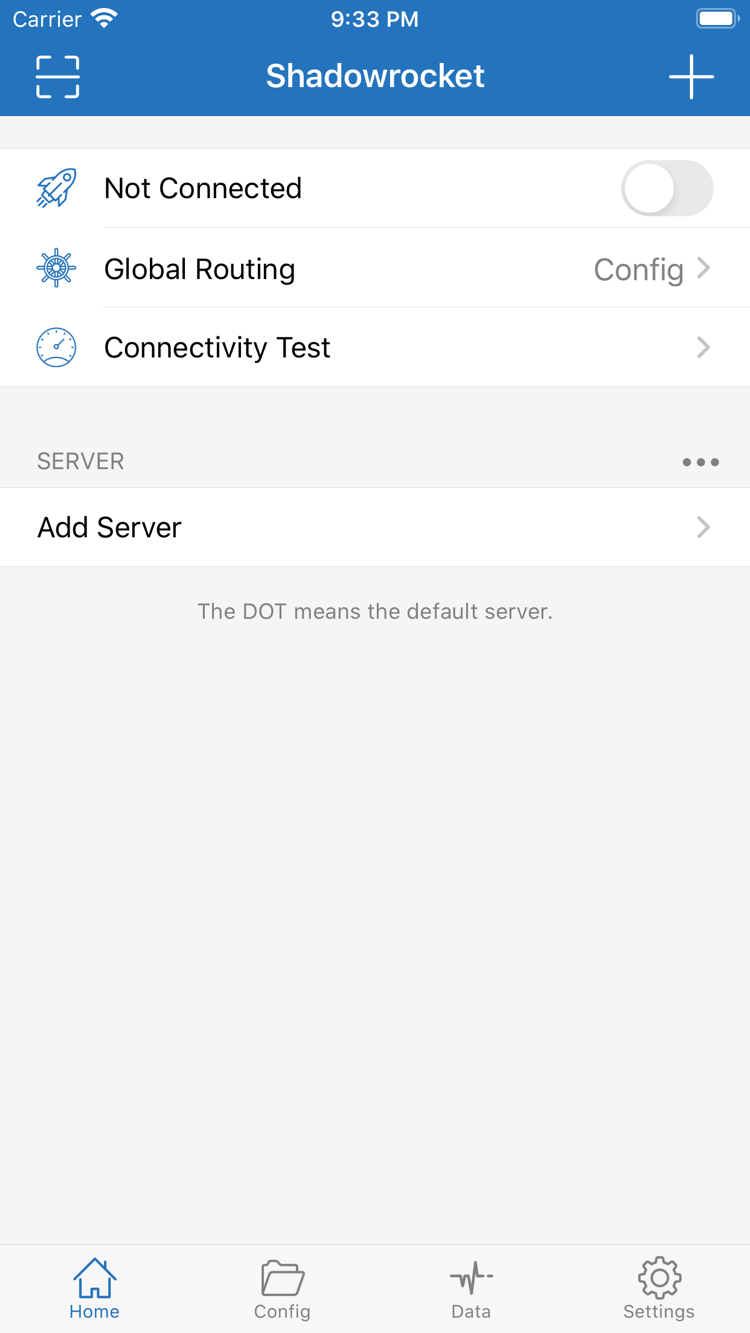
Shadowrocket home screen on iPhone
Shadowrocket · iPhone interface

Check before downloading

Lookalike listings and files from unknown sources
are not product verification

“Shadowrocket” is the product name; a name alone is not enough to identify an app. Check the device first, then verify the download source. Names, similar icons and reposted descriptions in search results are no substitute for the specific details on the store product page or this site's download page.

Check three details in the store

On the iPhone / iPad App Store product page, verify the developer, Shadow Launch Technology Limited, the official icon and app ID 932747118. A free listing with the same name is not the iPhone / iPad product described here; this version costs $2.99 once, while Mac, Windows, Android and Linux versions are free.

Verify the download path

Installers for Mac, Windows, Android and Linux are provided on this site's download page. Their actual URLs are under /dl/shadowrocket/. Do not judge a file's source by its name alone. Select the operating system and architecture first, then follow the download page's guidance for system prompts. Stop running a file if its source is unclear, and download it again from the correct location.

Keep connection details separate from the client

Installing the app does not provide a working connection by itself. Subsequent steps assume you already have your own subscription or server details. Subscription links may contain personal credentials; do not share the full URL, QR code, password or configuration file when troubleshooting. This site does not provide nodes or subscriptions.

Rule reference / SETTINGS

Rule-Based Routing and Connection Settings

First distinguish server details, configuration files and routing modes, then adjust connection conditions. The snippets below illustrate actual rule syntax and settings; they are not app screenshots, and the example domains do not represent usable servers.

Config: Match Rules in Order

Rule-based routing lets different requests use different handling. In Config, confirm which configuration file is active, then check the order of the rules. More specific domain or address rules should come before fallback rules. When Global Routing is set to Config, routing follows the rules in the configuration. DOMAIN-SUFFIX matches domain suffixes, GEOIP matches by address location, and FINAL handles requests not matched earlier. After making changes, test access to the target; the connection toggle alone cannot confirm the routing result.

DOMAIN-SUFFIX,example.com,PROXY
GEOIP,CN,DIRECT
FINAL,PROXY
Read about rules and configurations →
Get it by device / 2 ways to get it

Shadowrocket for All Platforms

iPhone / iPad: $2.99 once through the App Store; Mac (Apple Silicon and Intel), Windows, Android and Linux: free. The links below lead to the download guide, where you can confirm file type, architecture and system prompts on first launch.

iPhone / iPad

App Store · $2.99 one-time

One purchase covers both devices. Check the App Store page for system requirements. Before purchasing, verify your store account's region and the developer details. Other platform versions are free; this does not make a free listing with the same name in the store the product described here.

When reinstalling or changing devices, check your purchases using the original purchasing account. After installation, prepare your own existing subscription or server details, then open Home to configure the app.

Mac

Free · Apple Silicon / Intel

Open About This Mac and choose the matching DMG based on the chip information; do not guess the architecture from the model's appearance. Installers for both architectures are listed in the download guide, and the actual files are served from this site's download paths.

If the first launch says the developer cannot be verified, confirm the source, then check Open Anyway under Privacy & Security. For other blocks, follow the installation approval guide instead of repeatedly replacing the file with one from an unknown source.

Windows

Free

Get the Windows 64-bit installer from the download guide, and run it after the download completes. If SmartScreen appears, first confirm the file is from this site; then select More info to view the Run anyway option.

Installation does not configure a connection. Before first use, you still need existing server details and should confirm the current routing mode. If the device is managed by an organization, follow its device management requirements and do not change security policies without authorization.

Android

Free · arm64

Get the APK through this site's download guide. If the system restricts installation, enable Allow from this source for the browser used to download it. You can revoke this permission after installation if needed.

If the built-in WeChat browser cannot download the file, open this site in your system browser instead. Do not confuse a download failure with invalid connection details. After installation, check imported content, connection authorization and connectivity separately.

Linux

Free · deb / rpm / AppImage

Choose deb or rpm according to your distribution's package manager. For AppImage, grant the file execute permission first. All three formats are available through this site's download guide; they are not separate products.

Before running an installation command, confirm the current directory and exact file name, and review any system dependency prompts. Handle installation, launching from the desktop and connection testing as separate steps. If something fails, note the stage and consult the relevant instructions.

Product details / access and recovery

Verify, Purchase and Update

Shadowrocket is a closed-source commercial app. Verify what you are downloading using details that can be checked, not similar names or reposted descriptions. This is the official Shadowrocket site and guide, with platform-specific access options and configuration instructions.

  • Developer Shadow Launch Technology Limited
  • App ID 932747118
  • iPhone / iPad $2.99 once · Mac / Windows / Android / Linux free
01 / Verify the app

Verify the developer, icon and app ID together

Open the App Store product page, check the app name, then open the developer information and confirm it shows Shadow Launch Technology Limited. Compare the official icon and check that the product link's app ID is 932747118. All three details should point to the same product. Do not rely only on the first search result or a localized nickname. A free listing with the same name in the App Store is not the iPhone / iPad version described here.

The iPhone / iPad version costs $2.99 once through the App Store; Mac, Windows, Android and Linux versions are free. This platform difference does not change the verification process: check the mobile app's identity in the store, and access other platforms through this site's download guide, confirming that installers are under /dl/shadowrocket/. Downloading a file and verifying its identity are separate steps; a correct file extension does not confirm its source.

02 / Store availability

If it does not appear in search, check your account region

On iPhone / iPad, App Store search results depend on the region associated with your Apple ID, not just the device language. This app is not available on the mainland China App Store. If it does not appear in search, first check the country or region in your account settings and whether the store currently offers the product. Do not repeatedly install similarly named apps. Refer to the App Store page for system requirements; check compatibility information before deciding whether to proceed on an older device.

If you need to change your account region, follow the process in your system account settings and first address requirements such as account balance, active subscriptions and payment methods. A region change is an account action, not part of client connection setup. This guide covers these as separate issues: see the access section for store questions, and the connectivity section if the app is installed but cannot connect. This helps avoid troubleshooting the wrong problem.

Read about store regions and access →

03 / Purchase and restore

Check purchase history with your account, not a configuration file

The iPhone / iPad version costs $2.99 once through the App Store, and one purchase covers both devices; Mac, Windows, Android and Linux versions are free. When changing devices or reinstalling, find Shadowrocket under purchases in the original purchasing account, then download it again. If the page still shows a purchase button, first confirm that the current account and store region match those used for the purchase. Server subscription login details are not app purchase credentials.

Restoring the app and restoring connection details are not the same thing. After downloading again, check the server list in Home, the active configuration in Config and the current Global Routing mode. Before using iCloud to sync related settings, confirm the account and sync status; seeing the app does not mean all its data has been restored. Keep necessary configuration details before removing content from an old device, and do not store files containing personal credentials in a public location.

See steps for changing devices and downloading again →

04 / What the price covers

A one-time client purchase is not a service plan

The client reads existing connection details, applies routing rules and provides diagnostic tools; purchasing or installing it does not create a server. The $2.99 one-time purchase for iPhone / iPad covers the client itself; Mac, Windows, Android and Linux versions are free. Check an existing subscription's validity, server availability and network path separately from getting the app. Purchase history cannot tell you whether a connection service is working.

This site does not provide, sell or recommend nodes or subscriptions. Tutorials assume you already have your own subscription or server details and explain how to import them, select a default server, connect and check the result. If your details are incomplete, ask your existing service provider to confirm the required fields. Do not guess passwords, protocol types or ports to fill in the configuration. Treat links and QR codes containing access credentials as personal data; include only necessary, non-sensitive details when reporting a problem.

05 / Updates and first connection

Confirm how to get the app, then check connection status

Update the iPhone / iPad app through the App Store. For Mac, Windows, Android and Linux, return to this site's download guide for the current installer. Before updating, note the configuration in use; afterward, check that the default server, active configuration and routing mode are as expected. The current version shown on the page is read dynamically from download information. Do not treat interface descriptions in articles as a promise of a fixed version; use the English setting names shown in the app to identify options when their locations change.

Check a first connection in four stages: confirm that the local network works, check that imported entries are complete, select a default server and authorize the system connection, then run Connectivity Test. Turning on the connection only means the connection attempt has started; it does not guarantee access to a destination. Traffic statistics in Data help you monitor usage but do not replace connectivity checks. If a test fails, change one thing at a time and record the results before and after to identify whether the issue is with the configuration, server or current network.

Read the complete first-connection steps →Browse answers by issue →

Official Guide / Featured Articles

Connection, Installation and Pricing

Continue with the steps relevant to your situation. For first use, verify the connection; for computer installation, check the architecture and system prompts; for purchase questions, distinguish the client price from existing connection services.